
How to Get Started with InvoiceRocket: Your First Customer, Contract and Invoice
The shortest path from an empty account to a sent, GST-compliant invoice — add the customer, file the contract, raise the invoice, then log expenses and timesheets. In the order the app actually expects.

Freelancer for 10+ years with clients in the USA, Australia, Europe, South Africa and India. Built InvoiceRocket to keep his own invoicing, GST and Section 44ADA tracking in order, and to give his CA everything in one place.
You signed up, named your business, and now the dashboard is looking back at you. Most invoicing tools drop you here and hope you figure it out. This guide is the shortest path from an empty account to a sent invoice that a client's accounts team will actually process.
Five steps, in the order the app expects them. The whole thing takes about fifteen minutes the first time, and about ninety seconds every time after that.
TL;DR. Add the customer first — the invoice inherits their currency, payment terms and GST state, so filling this in once saves you correcting every invoice later. File the contract under that customer while you still have it to hand. Then raise the invoice: the number, due date and tax treatment fill themselves in. Expenses get logged as they happen, and timesheets only if you bill by time — in which case they come before the invoice, not after.
Why start with the customer and not the invoice?
Because an invoice is mostly a customer with numbers attached.
When you add a customer, four fields quietly decide what every future invoice for them looks like:
- Currency becomes the invoice currency.
- Payment Terms (days) becomes the due date. Set it to 15 and an invoice raised today is due on the 4th.
- Country and State decide the tax treatment. For an Indian customer you pick a GST state code, and that is what determines IGST versus CGST plus SGST. Get it wrong here and every invoice is wrong.
- Default Rate and Billing Unit pre-fill your line items, so you stop retyping your own rate.
Try to start at the invoice instead and you will be sent back to create a customer anyway — just with half the fields left empty because you were in a hurry.
Two fields are worth a second look. Email and Invoice to be sent to email are deliberately separate. The first is your project contact, the human. The second is where invoices actually go, which at most companies is an accounts@ or finance@ address. Filling in the second one is the single highest-leverage thing on this form. An invoice that lands in the AP inbox on day one gets paid roughly a fortnight sooner than one your contact has to remember to forward.
One thing to know going in: the address is a single free-text box, not structured lines. Paste the full registered address exactly as it appears on the client's GST registration, not the brand name on their website.
Upload the agreement or contract
Do this while the signed PDF is still in your inbox. Nobody has ever enjoyed hunting for a two-year-old SOW.
There are two places documents live, and the difference matters:
- Documents in the sidebar is the org-wide library — your LUT acknowledgement, tax challans, anything not tied to one client.
- The customer's own page has the same uploader, and anything you put there is filed under that customer. This is where the contract belongs.
When you upload, set Document type to Contract / SOW. Contracts get two extra fields, Valid from and Valid to, which you can leave blank if the engagement is open-ended. The Document date field is not cosmetic — it decides which financial year the document counts for, and new organizations are set up with a folder per financial year automatically.
Accepted formats are PDF, JPG, PNG, DOC, DOCX, XLS and XLSX, up to 5 MB each.
This step feels like admin and pays off exactly once, at the worst possible moment. When the GST department asks you to substantiate an export — and that does happen — the first thing they want is the contract that shows what you supplied, to whom, and where they are located. Two minutes now, or a scramble through three years of email later.
Create and send your first invoice
Head to Invoices and start a new one. Most of it is already filled in.
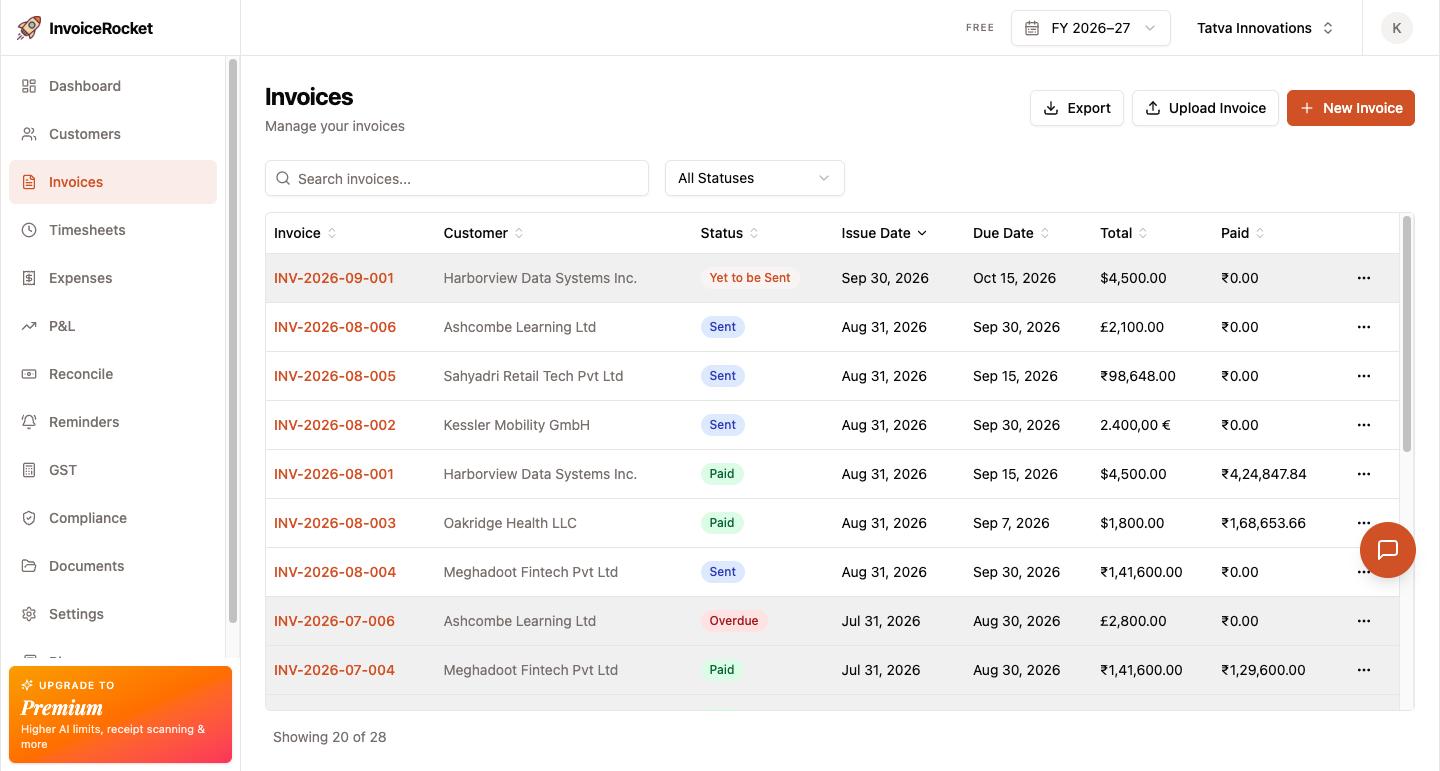
The Invoice Number comes pre-filled from your numbering scheme. Out of the box that is INV-2026-09-001 — prefix, year and month, then a three-digit sequence. You can change the prefix, the year format, the separator and the digit count under Settings, and there is a live preview so you can see what you are choosing. Do it now if you are going to do it at all, because changing numbering mid-year is its own headache.
The due date comes from the customer's payment terms. The tax treatment comes from their state. What is left for you is the actual work: a description, a quantity, a rate, and an HSN/SAC code on each line. For IT and software development services that is usually 998314. It is a required field, not a nicety — a missing SAC is one of the more common reasons an invoice gets bounced back by a client's finance system.
Already invoicing somewhere else? There is an upload path that reads an existing invoice PDF and extracts the details, which is considerably faster than retyping a year of history.
When you send, InvoiceRocket generates the PDF and emails it as an attachment to the customer's invoice email address. The send is recorded on the invoice's activity log, along with delivery, open and bounce events — so "I never received it" becomes a question you can actually answer. If you would rather email it yourself, there is also a plain mark-as-sent option that skips the email entirely.
Invoices then move through six states: Yet to be Sent, Sent, Partially Paid, Paid, Overdue and Cancelled.
Log expenses as they happen
Not at year end. At year end you will find a shoebox of receipts, remember none of them, and quietly hand a few thousand rupees of deductions to the government.
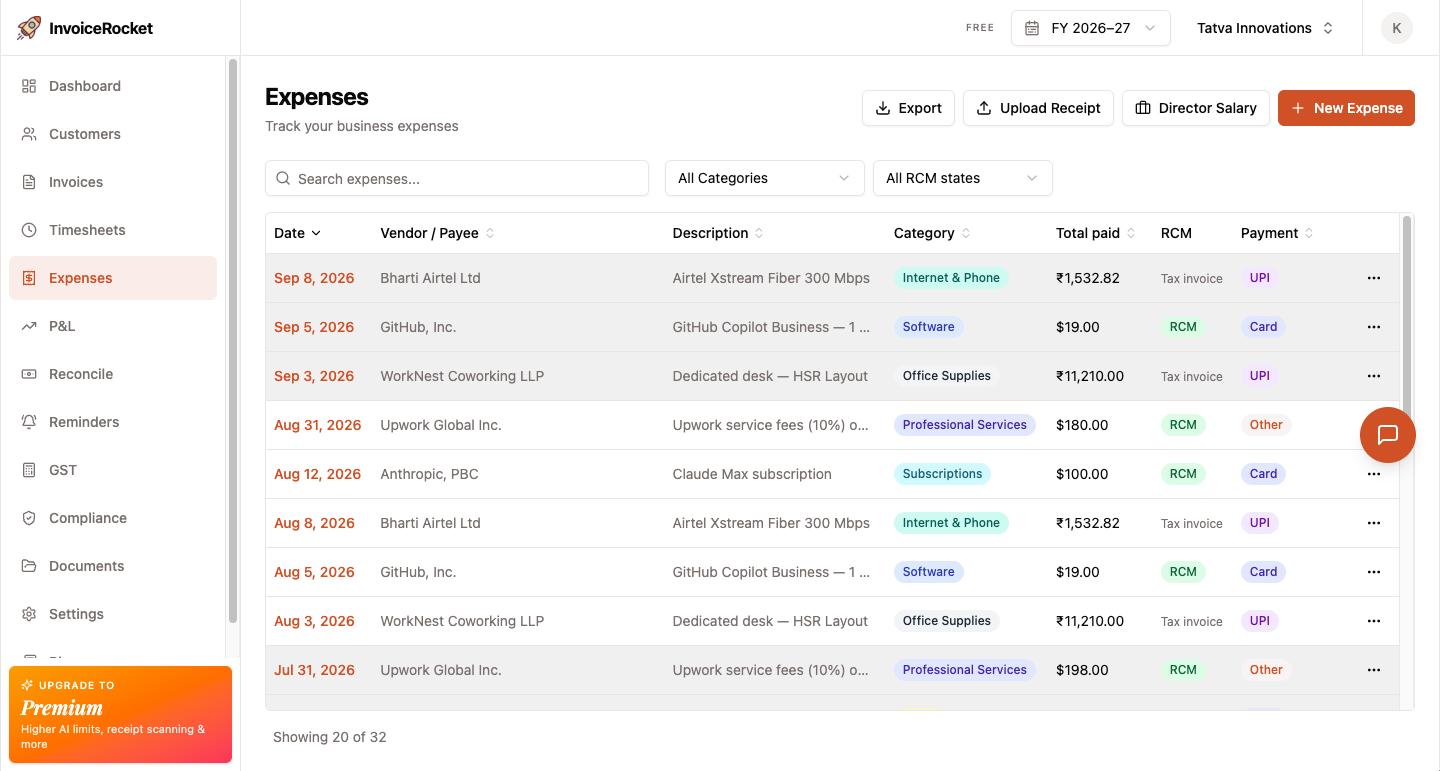
The fastest route is Upload Receipt. Hand it a PDF or a photo — up to 10 MB — and it reads the vendor, date, amount and tax off the receipt and pre-fills the expense form. It does not save anything on your behalf; you review what it extracted and then save. Which is the right trade-off, because receipts are frequently crumpled, badly lit and partly in a language the vendor invented.
One field deserves attention: Document Type. Choosing Import of service — for your Vercel, AWS or Figma bills — triggers a reverse charge prompt, because GST on imported services is your liability to pay and then claim back, not the vendor's. This is the single most-missed item in Indian freelance bookkeeping, and the app nudges you about it rather than letting it slide.
Log timesheets, but only if you bill by time
If you work on fixed-price projects, skip this entirely. It exists for people billing hourly, and for everyone else it is pure overhead.
If you do bill by time, one correction to the running order: timesheets come before the invoice, not after. The point of logging hours is that the invoice writes itself from them.
An entry is a customer, a date, hours, a description, and optionally a rate that overrides the customer default for that entry. There are no projects or tasks — entries hang directly off the customer, which keeps it quick and means you will actually do it.
The billing flow starts on the Timesheets page rather than in the invoice editor. Filter to unbilled, tick the entries you want, and use Create Invoice. The editor opens pre-filled, with hours grouped into one line per distinct rate — so eighteen entries at ₹5,000 and four at ₹6,500 become two clean lines, not twenty-two. Once the invoice is saved those entries lock as billed, and they unlock again if you cancel or delete the invoice.
One constraint worth knowing before you start ticking boxes: all selected entries must belong to a single customer.
You closed the Get Started card. Now what?
This guide exists partly because someone called me about exactly this. They had signed up, dismissed the welcome checklist, and had no way to get it back.
That is fixed — Get Started at the bottom of the sidebar brings the checklist back whenever you want it, on desktop and mobile. It tracks your business profile, logo, first customer and first invoice, and it knows the difference between someone sending their first invoice ever and someone migrating a year of history from another tool.
Frequently asked questions
Should I create a customer or an invoice first?
The customer. An invoice inherits the customer's currency, payment terms and GST state code, which between them determine the invoice currency, the due date and whether you charge IGST or CGST plus SGST. Starting at the invoice sends you back to create a customer anyway, usually with fewer fields filled in.
What is the difference between Email and "Invoice to be sent to email"?
Email is your day-to-day contact, the person you work with. The invoice email is where invoices are actually delivered, which at most companies is a separate accounts@ or finance@ address. Filling in the second one means the invoice reaches the accounts payable system immediately instead of waiting for your contact to forward it.
Where should I upload a client contract?
On that customer's own page, not the org-wide Documents library, so the contract is filed against the client it belongs to. Set the document type to Contract / SOW, which gives you Valid from and Valid to dates, and set the document date correctly because it decides which financial year the document falls into.
What HSN or SAC code do I use for software services?
998314 covers IT design and development services and is the common choice for freelance developers. It is a required field on every line item, and a missing SAC code is a frequent reason client finance systems reject an invoice.
Can I change my invoice number format?
Yes, under Settings. You can set the prefix, the year format including financial-year styles, the separator and the number of digits, with a live preview. The default is INV-YYYY-MM-NNN. Change it before you raise many invoices rather than partway through a financial year.
Do I have to use timesheets?
Only if you bill by the hour. On fixed-price work they are pure overhead. If you do bill hourly, log the time first and then create the invoice from the unbilled entries — the hours are grouped into one line per rate automatically, and the entries lock as billed once the invoice is saved.
What happens when I send an invoice?
The PDF is generated and emailed as an attachment to the customer's invoice email address, and the send is recorded on the invoice activity log along with delivery, open and bounce events. There is also a mark-as-sent option that changes the status without sending any email, for when you would rather send it yourself.
I dismissed the Getting Started checklist. Can I get it back?
Yes. Use Get Started at the bottom of the sidebar and the checklist returns, on both desktop and mobile. Dismissing it is no longer permanent.
That is the whole loop: customer, contract, invoice, expenses, and time if you bill for it. Everything after this is repetition, which is exactly what you want from bookkeeping.
InvoiceRocket is built for Indian freelancers and small studios — GST-ready invoicing, multi-currency, LUT-aware, with reverse charge and financial-year filing handled rather than bolted on. It is free for most freelancers.